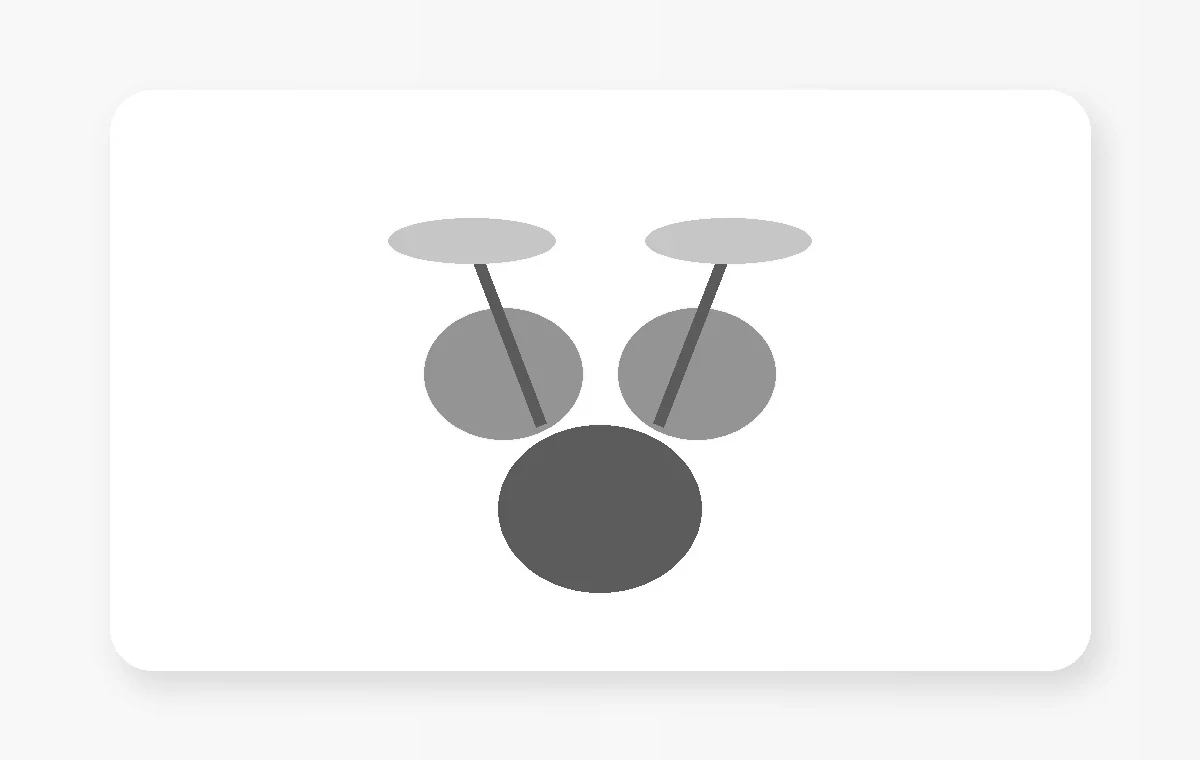
Clone Hero supports drum play with compatible game drum kits and MIDI electronic kits. The reliable setup method is to select the right instrument profile first and map each physical input deliberately.
Pick the correct drum profile
Choose the drum instrument type that matches the chart and hardware you intend to use. The selected profile affects how pads and cymbals are interpreted.
Quick validation
Change one variable, test it immediately, and keep the working state before moving to the next adjustment.
Clear conflicting default mappings
Default bindings designed around other controllers can interfere with drum inputs. Remove mappings that fire unexpectedly before assigning pads and kick.
Map pads, cymbals and kick
Assign each physical pad to the matching lane, then add cymbals and one or two kick inputs as appropriate. Test menu navigation separately from gameplay inputs.
Set up a MIDI e-kit
Select the MIDI input device in the profile settings and use the MIDI mapping workflow to pair snare, toms, cymbals and kick with the expected in-game notes.
Troubleshoot missed hits
Check sensitivity and physical triggers on the drum module before assuming the game is dropping notes. Then review duplicate mappings and USB/MIDI connection stability.